 NOCTUX
Mechanic's guide
Open the app
NOCTUX
Mechanic's guide
Open the app
NOCTUX
NOCTUX
Mechanic's guide
Open the app
NOCTUX
Mechanic's guide
Open the app
NOCTUX
A quick guide for the day to day: log the parts that come in, follow every job and never lose a photo or a spare part. If you use WhatsApp, you'll find this easy.
NOCTUX is where the shop logs and follows every job. What you put in, the others see right away, and the other way round. Nobody has to ask “where are we with this one?”.
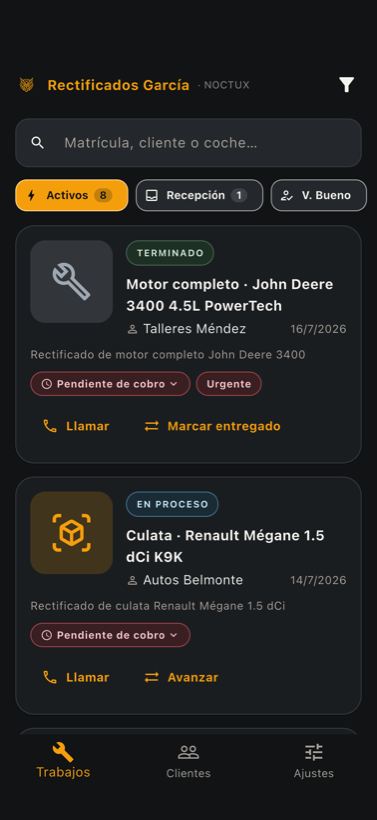
Each card is a job. At a glance you see its status (the color), the part, the vehicle and the client.
At the bottom you always have Jobs and Clients.
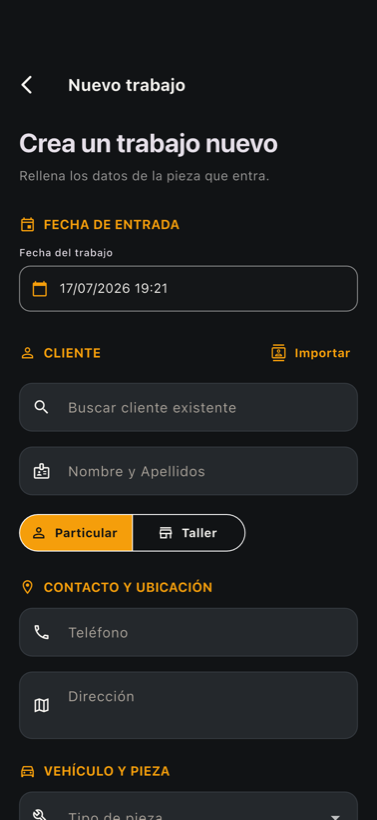
This is the most important thing you'll do. Do it as soon as the part arrives, don't leave it for later.
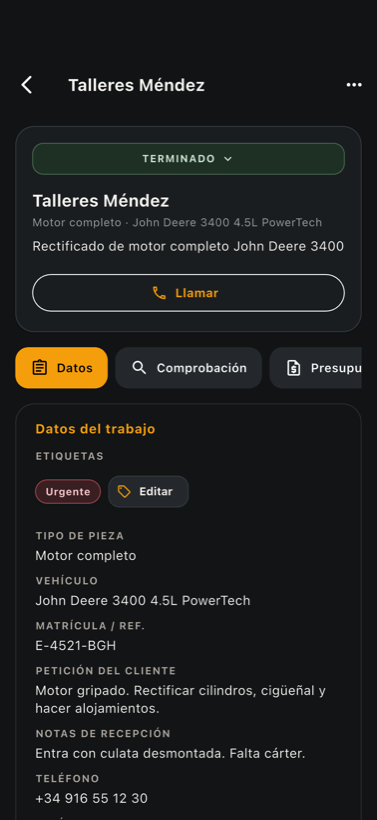
Open the job by tapping it. Inside there are tabs. Fill them in as you go:
In the Inspection tab, mark each thing you check (cracks, flatness, valves, pressure test…) as OK, Not OK or Ask the client. Add notes if needed.
In Tasks you see what needs doing to this part (strip-down, cleaning, machining, assembly, testing…). At the top are this job's tasks; below, folded away, is the list for that part type: tap one and it goes onto the job. If something isn't needed, tap it again and it goes back to the list. With Copy you take the list with you to paste into your invoicing software.
In Parts, note down the spare parts to order; the usual ones for that part type are just below, one tap away, with their reference and supplier already filled in. Mark it Ordered when you order it and Received when it arrives. If something's missing, it's clear the job is on hold waiting for parts.
At the top of the job there's a big button with the status (for example IN PROGRESS ▾). Tap it to change it as the job moves along.
Also, from the Jobs list, each card shows the button for the next step, which changes with the status (for example Mark as finished), and Mark as delivered when the client takes it away.
| Status | What it means |
|---|---|
| Received | Just in, not checked yet. |
| Inspection / Awaiting quote | Being checked, or still needs a quote. |
| Quote sent / Accepted | Sent to the client / the client said yes. |
| In progress | Being worked on. |
| Waiting for parts | On hold, waiting for a spare part. |
| Finished / Delivered | Done / the client has taken it away. |