NOCTUX is a shared notebook for your shop, but on your phone and computer. Instead of writing jobs down on paper or on the whiteboard, every job that comes in is logged with its client, its vehicle, its photos and its status.
The best part: your whole team sees the same thing, instantly. No more “where are we with that cylinder head?” or “did you order that part yet?”. Everyone, from their own phone, knows what has come in, where it's at and what's left before it goes out.
The idea in one sentenceLog the part when it comes in, follow it as a team, and never lose a photo, a quote or a spare part along the way.
NOCTUX is not invoicing or accounting software. You keep doing your invoices in the software you already use; here you just run the day to day of the shop, from drop-off to pick-up.
2Logging in for the first time
We set you up and send you your username and password. With them you can log in from anywhere (your data is the same everywhere):
On a computer: open your browser (Chrome, Safari…) and go to noctuxapp.com/app. Tap Log in.
On a phone or tablet: install NOCTUX from the App Store (iPhone/iPad) or Google Play (Android). Open it.
Type in the email and password we gave you and log in.
The first time, it will ask you to change the password to one of your own. Keep it somewhere safe.
TipLog in yourself first from the computer to set things up without rushing (team, shop name). After that, each mechanic logs in from their own phone with their own account.
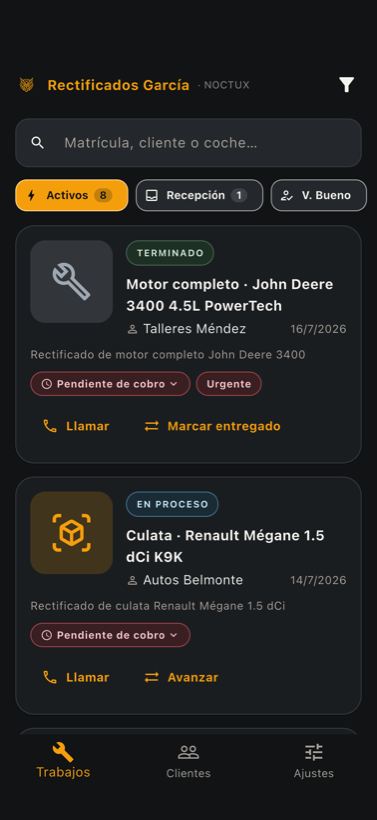
Main screen: every job in the shop.
3The main screen
When you log in you'll see the Jobs list. It's the heart of the app. Each card is a job in the shop, with:
The status in color (for example IN PROGRESS, FINISHED).
The part and the vehicle, and the client.
Quick buttons to Call the client and for the next step, which changes with the status (for example Mark as finished).
At the top you have the search bar (by plate, client or vehicle) and, below it, the status filters, all in plain sight: Active, Received and Approval (whatever is waiting for your OK).
Right at the bottom there are three buttons that are always there: Jobs, Clients and Settings. Those are your three areas of the app.
4Adding your team
You're the owner. You can create an account for each person in the shop so they can log in from their phone. Up to 5 users included.
At the bottom, tap Settings.
Go into Team.
Tap + Create mechanic account.
Type in their name and email, and set a password for them.
Give it to that person. They can now log in from their phone with that email and password.
What can each person do?
Role
What they can do
Owner (you)
Everything: log jobs, add the team, set up the shop.
Administrator
Almost everything, for someone you trust to help you run things.
Mechanic
The day to day: log jobs, inspect, quote, take photos.
ImportantEach person must log in with their own account, not yours. That way you all know who's handling each job, and alerts go to the right person.
5Add your shop's name and logo
The app can show your shop's trading name and logo in the header, so it feels like your own.
Tap Settings.
Go into Shop branding.
Type in your shop's name and, if you like, upload your logo.
Save. You'll see it at the top of every screen.
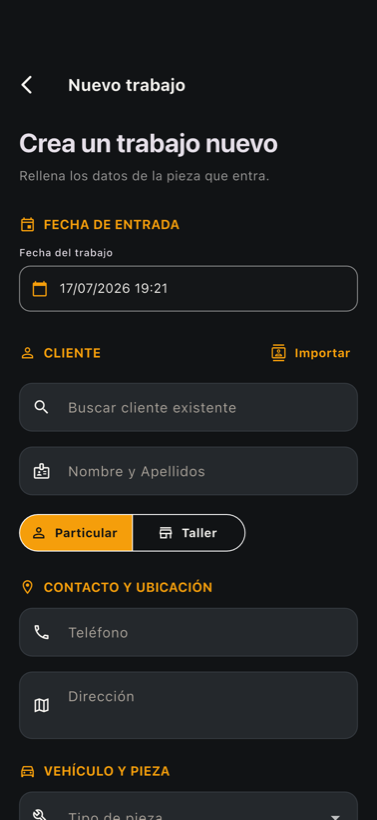
Logging a job: fill in the details of the part coming in.
6Day to day: logging a job
When a part comes in, you log a job. It's quick:
In Jobs, tap the orange + New job button at the bottom right.
Pick the client: search for them if they're already in, or type their name. Mark whether they're Private or Trade.
Add their phone number (so you can call them with one tap later on).
Fill in the vehicle (make, model, engine, plate) and the part type.
Write down what the client is asking for. If you don't feel like typing, tap the microphone 🎤 and say it out loud: it types itself.
Take one or more photos of the part just as it came in.
Tap Save job. Done: the whole team can see the job now.
A trick to skip the typingYou'll see a microphone 🎤 in almost every text field. Tap it and talk; NOCTUX types it for you. Very handy with greasy hands.
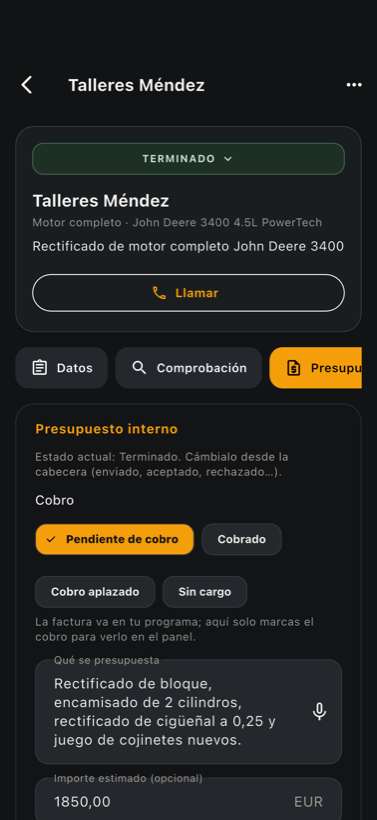
Inside a job: the quote and the payment status.
7Following a job through to delivery
Tap any job to open it. At the top is the status button (for example FINISHED ▾): tap it to change the status as the job moves along (received → inspection → quote → in progress → finished → delivered).
Right below are tabs with everything about the job:
Details: client, vehicle, what they're asking for, notes and phone number.
Inspection: what has been checked and what came out of it.
Quote: what's going to be done and how much. This is also where you mark the payment (Unpaid, Paid…).
Tasks and Parts: what needs doing and the spare parts to order.
Photos: all the photos and videos of the job.
About paymentNOCTUX doesn't do the invoice (you do that in your own software). Here you just mark whether it's paid or still owed, so you can see it at a glance on the dashboard and none slip through the cracks.
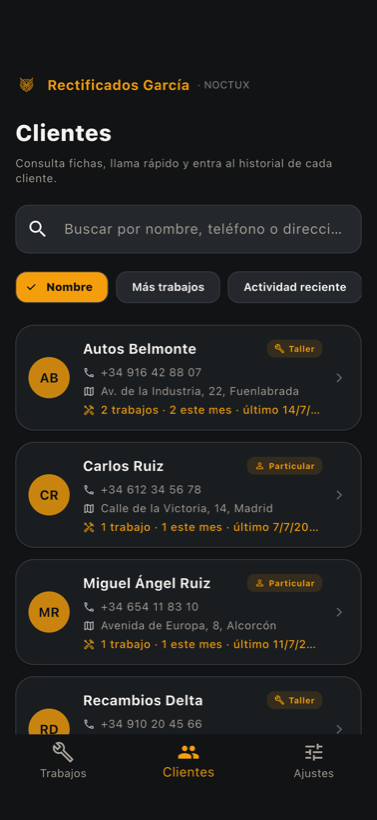
Clients: details, phone number and history for each one.
8Your clients and their history
The Clients button (at the bottom) has the list of all of them. For each client you see their phone number, their address and how many jobs you've done for them.
Search for the client by name, phone number or address.
Tap their card to see their whole job history, sorted by date.
From there you can Call them with one tap.
You can sort them by Name, Most jobs or Recent activity to see at a glance who your best client is.
9The job number
Every job has its number (No. 24): the one you write on the part with a marker and the one you look up later in your invoicing software. The app sets it by itself, in order and never repeated.
If your shop already has its own numbering (say you're up to 1,200), tell the app to carry on from there and you'll have one number for everything: Settings → Setup and templates → Job numbering → Start numbering from. Jobs that already exist keep their number.
10Activity: who did what
In Settings → Shop activity you have, day by day, everything that happened: who logged each job, who marked it finished, who entered the amount, who took the payment and who handed it over.
It answers two everyday questions: “what happened today?” and “who set this up like this?”. Tap a line and the job opens.
Only you and your administrators can see it. Mechanics see their jobs, not the team log. And the system records it by itself, not people: nobody has to remember anything.
11Your data is yours
Two things for peace of mind:
Automatic backup every day. You don't have to do a thing; if a phone breaks or gets lost, your data is safe in the cloud (servers in Europe).
Export to Excel whenever you want. In Settings, Export the shop's data gives you an Excel file with all your clients and jobs. They're yours to take with you whenever you want, no strings attached.
12Frequently asked questions
Do I need internet?
Yes, so everyone sees changes instantly. If signal is poor somewhere in the shop, photos are saved and upload by themselves when the signal comes back.
I'm not great with computers…
You don't need to be. If you can use WhatsApp, you can use NOCTUX. And for typing you have the microphone 🎤: you talk and it types itself.
What if I make a mistake when logging a job?
You can edit it or delete it. Nothing is set in stone. Tap the job and use the ··· menu at the top right.
How much does it cost?
The monthly subscription you'll see in the app, per shop, for up to 5 users, with no lock-in contract. You sign up from the app itself, with your App Store or Google Play account, and cancel from there whenever you like.
Questions, or something not working? Write to us, and a real person will help you. Chat: Settings → “Talk to support” · Email:[email protected] · Web:noctuxapp.com/app
 NOCTUX
Owner's guide
Open the app
NOCTUX
Owner's guide
Open the app